Overview
This guide provides a walkthrough for using DataTongs to extract existing table data into scripts suitable for source control, allowing future modifications to be made. The primary use case for these is the deployment of seed or lookup data for each release, but it can also be useful for generating scripts that deploy test data for your CI.
Step 1: Prerequisites & Setup
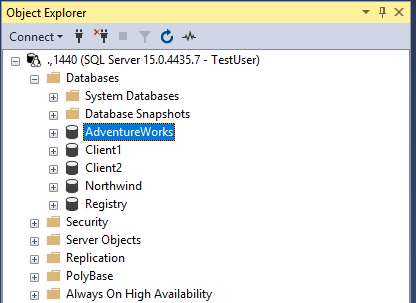
To begin, ensure access to a running Microsoft SQL Server with an existing database from which to extract the schema. Authentication can be configured using either SQL Server Authentication or Windows Authentication, depending on the server setup. This tutorial uses a Docker container running a Linux SQL Server image on a Windows laptop, connecting via SQL Server Authentication.
For this example, we are using the AdventureWorks database populated with the test data supplied by Microsoft.
Initial Setup
Install DataTongs and configure the AppSettings.json file with the server, login
details, and the first database to extract data from. Specify the directory for the new product
and the names for the Product and Template. Renaming a template later is possible but cumbersome,
as it affects both the template file and folder, as well as the product file. Below is an example
of the edited AppSettings.json.
{
    "Source": {
        "Server": ".,1440",
        "User": "TestUser",
        "Password": "*****************",
        "Database": "AdventureWorks"
    },
    "Tables": [ // { "Name": "", "KeyColumns": "", "SelectColumns": "", "Filter": "" }
        { "Name": "Person.Address" },
        { "Name": "Person.Address" },
        { "Name": "Person.BusinessEntity" },
        { "Name": "Person.BusinessEntityAddress" },
        { "Name": "Person.BusinessEntityContact" },
        { "Name": "Person.EmailAddress" },
        { "Name": "Person.PersonPhone" },
        { "Name": "Person.StateProvince" },
        { "Name": "Production.Location" }
    ],
    "OutputPath": "C:/Temp/TestData/AdventureWorks",
    "ShouldCast": {
        "OutputContentFiles": true,
        "OutputScripts": false,
        "DisableTriggers": true,
        "TokenizeScripts": true,
        "MergeUpdate": true,
        "MergeDelete": false
    }
}
The Tables section is where you provide the list of tables to extract data from.
The key columns that will be used to order the data and also match it for updating in the
generated MERGE script. You can optionally set which columns are the key for matching the
updates, which columns to include in the export, and/or a filter to scope the export.
The ShouldCast section is where you define whether your MERGE scripts will also
update and/or delete data. The MERGE will always include the section to insert missing rows.
Step 2: Running DataTongs
This is a console application, so it is recommended that you run from a command prompt. The need to create directories may require the command prompt to be opened in Administrator mode.
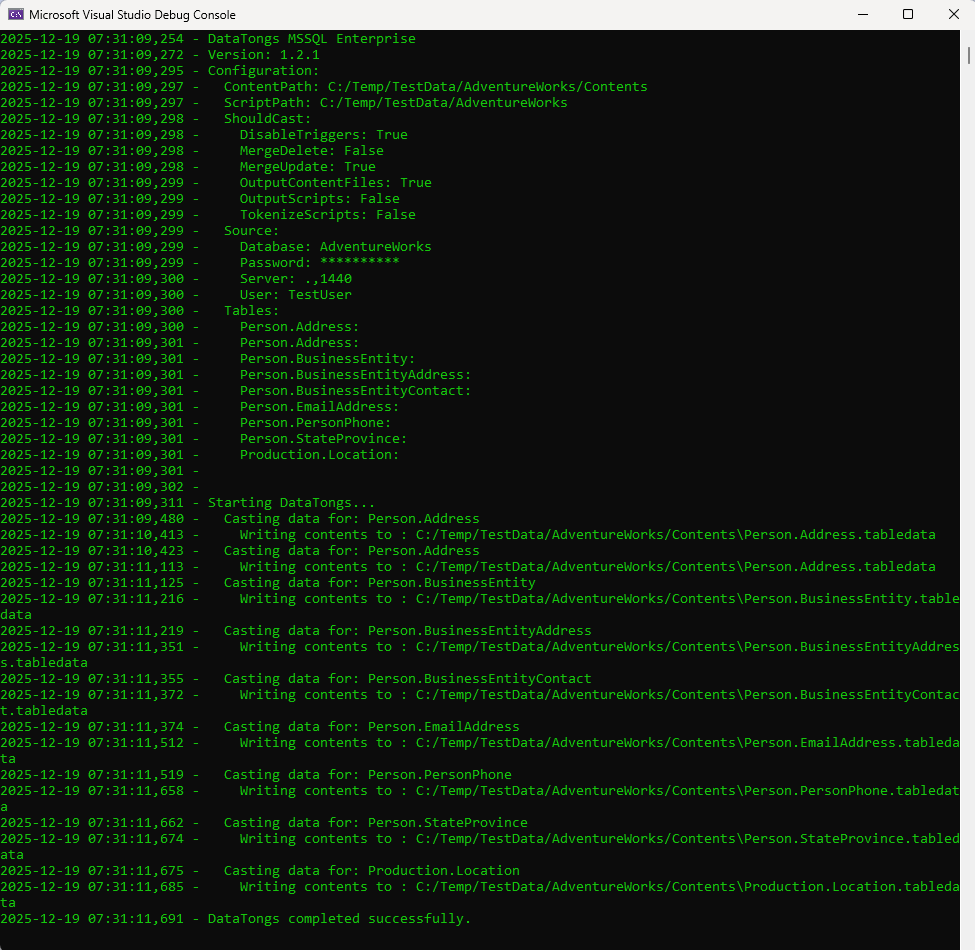
The tool will output progress to the console window and also generate log files for progress and an error log with details about any errors encountered. A successful run should look something like this with more detail depending on how many tables you configured for extraction.
Log Output
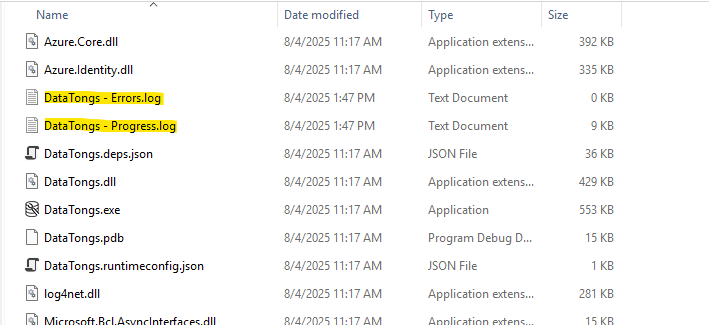
The progress log will contain the same text as the console window and gets backed up to a numbered folder between runs, if possible, in case you need to refer back to a prior run. Error messages will go into the errors log. The files and backup folders are produced in the folder containing DataTongs.
Step 3: Casting and Deploying Data
The tool will output scripts for the table(s) specified in the AppSettings.json to
the folder you specified in OutputPath like this:
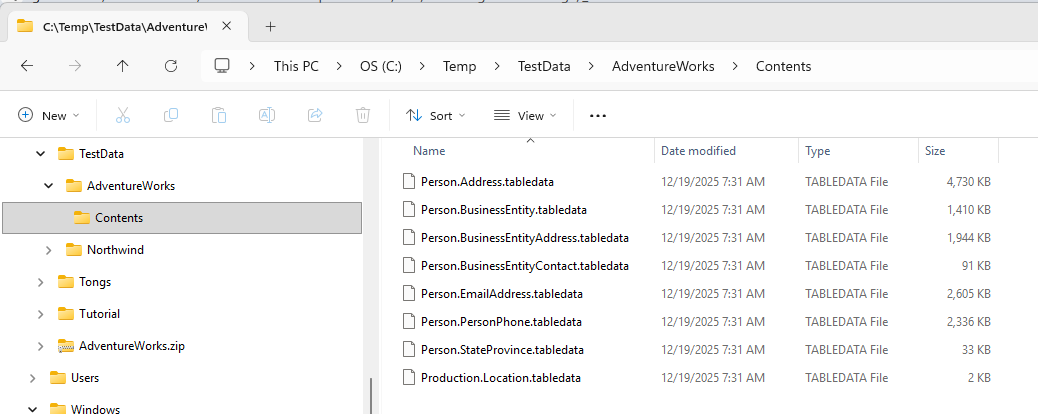
An example export file would look like this (Production.Location.tabledata):
[
{"Availability":0.00,"CostRate":0.0000,"LocationID":1,"ModifiedDate":"2008-04-30T00:00:00","Name":"Tool Crib"},
{"Availability":0.00,"CostRate":0.0000,"LocationID":2,"ModifiedDate":"2008-04-30T00:00:00","Name":"Sheet Metal Racks"},
{"Availability":0.00,"CostRate":0.0000,"LocationID":3,"ModifiedDate":"2008-04-30T00:00:00","Name":"Paint Shop"},
{"Availability":0.00,"CostRate":0.0000,"LocationID":4,"ModifiedDate":"2008-04-30T00:00:00","Name":"Paint Storage"},
{"Availability":0.00,"CostRate":0.0000,"LocationID":5,"ModifiedDate":"2008-04-30T00:00:00","Name":"Metal Storage"},
{"Availability":0.00,"CostRate":0.0000,"LocationID":6,"ModifiedDate":"2008-04-30T00:00:00","Name":"Miscellaneous Storage"},
{"Availability":0.00,"CostRate":0.0000,"LocationID":7,"ModifiedDate":"2008-04-30T00:00:00","Name":"Finished Goods Storage"},
{"Availability":96.00,"CostRate":22.5000,"LocationID":10,"ModifiedDate":"2008-04-30T00:00:00","Name":"Frame Forming"},
{"Availability":108.00,"CostRate":25.0000,"LocationID":20,"ModifiedDate":"2008-04-30T00:00:00","Name":"Frame Welding"},
{"Availability":120.00,"CostRate":14.5000,"LocationID":30,"ModifiedDate":"2008-04-30T00:00:00","Name":"Debur and Polish"},
{"Availability":120.00,"CostRate":15.7500,"LocationID":40,"ModifiedDate":"2008-04-30T00:00:00","Name":"Paint"},
{"Availability":80.00,"CostRate":18.0000,"LocationID":45,"ModifiedDate":"2008-04-30T00:00:00","Name":"Specialized Paint"},
{"Availability":120.00,"CostRate":12.2500,"LocationID":50,"ModifiedDate":"2008-04-30T00:00:00","Name":"Subassembly"},
{"Availability":120.00,"CostRate":12.2500,"LocationID":60,"ModifiedDate":"2008-04-30T00:00:00","Name":"Final Assembly"}
]
Deploying the Data
If you want to use the Data Delivery feature you need only configure the content location and merge properties for each table with data that you want to deliver and then make sure the files are located in the correct relative or absolute path at Quench time. Some companies put the data into their product repository and some treat the data differently, generating the artifact separately in the release process. SchemaQuench only needs to know where to find them. You can do the same when using tokenized merge scripts. As long as the tokens define the correct location for the files, the method of generating them and making them available is completely in your hands.
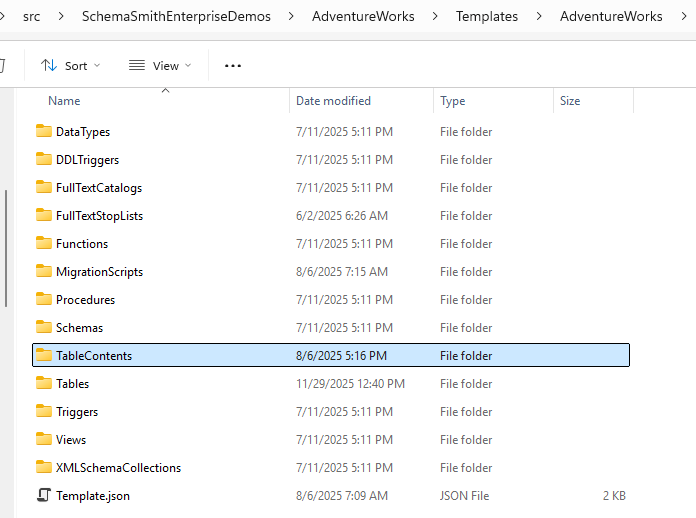
Both the Data Delivery feature and any folder designated for the TableData quench
slot will be executed with every update and will handle looping for dependency. You can control
script order via naming and Data Delivery will make a best effort to order based on the foreign
keys defined.
The new Data Delivery feature simplifies this process for most tables by allowing you to simply define a few properties on the table that tell SchemaQuench were to find the json file containing the data and it will generate the MERGE scripts on the fly and optimize the order based on any defined foreign key dependencies:
"ContentFile": "TableContents/Production.Location.content",
  "MergeType": "Insert/Update",
  "MatchColumns": "",
  "MergeFilter": "",
Note that the ContentFile path is relative to the template folder.